About Me

My photo
Hi,and welcome to my blog for Professional Skills.

Thursday, August 19, 2010

Digital Tool 8: Images.

http://img.metro.co.uk/i/pix/2008/10/SeaBagEPA_450x300.jpg

This week I uploaded a free program called Mobaphoto version 1.42 which allows you to resize and edit images using easy basic tools. I used this program to resize my photo to make it appropriate for uploading to the internet. When I was doing this I learnt that this program was a quick and free tool that has multiple settings with photo resize for wallpapers, printing, CD/DVD/HD Storage and uploading online after you selected the setting wanted you are then able to edit the image.

There are multiple purposes of using images. Teachers can present images with the purpose of engaging the students to a new topic, influence their feelings or supporting skill development. It is important for the photo to have a purpose. I believe this image showing litter in the ocean with sea life in the background could be used for a variety of purposes in the classroom. Such as:

- A visual cue to encourage discussion about 'How does pollution get all the way into the ocean?'
- Beginning of a SOSE unit of reduce, reuse, recycle unit.
- Influence their feeling to do the right thing and put their rubbish in the bins.
- Realising that is impacting on the sea creatures life, some rubbish can get caught on them.
- A hook into a lesson on the oceans environment.

Images can be used for a range of activities within the classroom. What are your thoughts of images as a learning tool?

Digital Tool 7: LMS

I made an attempt to have a play and create my own learning management systems (LMS), however due to a large backlog of requests via the website, I was unable to do so. My experiences of using LMS was with blackboard and moodle with both tools having different layouts though they are both great navigational tools which allows you to explore through a specific subject with folders organised in weeks for either homework activities, tasks, readings, etc. Implementing LMS within the classroom context would allow the students to download and upload files, participate in a chat forum, discussion boards, and work through set activities and homework tasks. “LMS is a step above a classroom website which is a more static approach to giving classroom information” (Wikibooks, 2009).

LMS allows parents to have a clear insight to the classroom routines while monitoring their child’s progress. Through LMS it creates a school to home connection that can benefit the student. If a learning manager post samples of students work this allows students and parent’s insight of the academic expectations. Through the use of LMS it “gives the teacher the opportunity to promote classroom activities and course expectations” (Wikibooks, 2009). A challenge of LMS once implemented in the classroom is to ensure to keep the content up to date and located in such a way that it can be easily located by the students and parents. Another great benefit with using LMS it allows students to work at their own pace at optional locations such as home, school or university. As a future learning manager I would embed this software within the classroom as there are optional benefits for not only you as the teacher but the students and their parents.

Reference:

Wikibooks. (2009, July 10). Instructional Technology/Learning Management Systems/Benefits.Retrieved August 14, 2010, from Wikibooks: the open-content textbooks collection:

http://en.wikibooks.org/wiki/Instructional_Technology/Learning_Management_Systems/Benefits

Wednesday, August 18, 2010

Digital Tool 6: PREZI.

Tuesday, August 17, 2010

Digital Tool 5: Powerpoint

I have just completed the powerpoint learning activities. It was clear what to do therefore making it and enjoyable learning experience. In tutorial two it was amazing that you can just type in microsoft word an outline of what your planning to teach then you select certain text under the subheadings to 'demoted text' which become dot points once you select 'send to powerpoint'. Through doing it this way it allowed me to just concentrate on the content needed instead of getting side tracked with adding in transitions, graphics and sounds.

Powerpoints within in the classroom context can be used to:
· Introduce a new topic.
· Showing information about a topic.
· To give instructions to an activity including visual images.
· Photo slides.
· Students create own PP for an assessment task.
· Tell a students learning journey within a certain subject.

The list is endless. Power points can be used effectively if they provide clear content/instructions that are relevant and meaningful to the students learning. Graphics, sounds and transitions used within the power point need to relate to the topic/activity or instructions as if used inappropriately or excessively this can be a distraction to the learners taking away from the content that is needed to be taught.

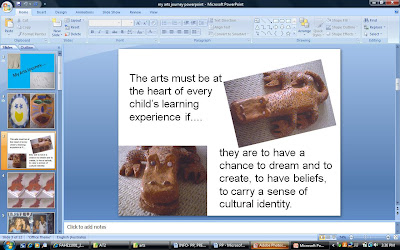
I have also uploaded a slide out of ‘My learning journey within the Arts’. It is great to use powerpoint as one ICT tool within the classroom as it breaks up from the teacher standing at the front of the class giving a task or explaining a new topic.


Sunday, August 15, 2010

Digital Tool 4 - Weebly Website

The difference between weebly to a blog and wikis is that creator decides on the content and structure alone, and nobody else is able to edit, or add to it. This makes a website ideal for teachers to upload examples of students work, or activities they are to complete.

How can a website be used within the learning context: - Engage the learners through audio/ visual images (cater for visual and audio learners).- Students have ownership of the design process.- Be used by the teacher to guide the learning process. - Samples of students work.- Daily News Page which allows parents to have insight of their childs learning. - Teacher profile including contact details.- Newsletter (excursion notes).- Classroom/school behaviour management policies and procedures.-Homework activities.

Creating my own website made me reflect on how positive this tool could be used within the classroom context. I like the idea of creating a website with activities and information (e.g. homework, assignment, newsletters, etc) for students to access. I created an S.W.O.T analysis for how effective it could be in a classroom context:


If you would like to visit my Weebly site, here is my URL:

http://nataliekane02.weebly.com/

Digital Tool 3 - Wiki

A blog is like an on-line diary/journal and is operated and added to by the author. The owner of the blog can determine the audience and followers of the blog can post comments. A wiki is an online space where users and guests can edit, modify, add, remove information with editing tools.

Both a blog and wiki contain text, images, hyperlinks, video and audio which allow a number of ways for students to choose what they would like to incorporate into their blog or wiki. Both ICT resources are free and anyone can have one making them a great resource for teachers to use within their classrooms. Both tools encourage project collaboration; can be used at school and outside of school. Provide flexible learning spaces for students to collaborate on a particular topic and are not secure resources as anyone can add and change information.

The collaboration aspect of a Wiki is probably the most important in relation to teaching. Giving student's a group activity that is posted online gives them a sense of responsibility. Mike Eisenberg (2001) created the Big6 Skills for solving an information problem. Creating a Wiki with a specific focus allows for ample experiences using the first 3 skills: Task Definition, Information Seeking Strategies and Locate and Access.

In the classroom context wikis could be used to:
- Communicate and collate information for a group work task.
- Collaboration of whole class research.
- Individual assessment task.
- Word walls.
- Virtual field trips.
- Communication tool to a different class though of the same year level or to a class of a different country.
- Teacher instructions.
- Displaying students work.

The list goes on as the main feature of this tool is to teach students how to collate and edit information. As students can’t copy and paste information found on a specific topic that the whole class may be working on as they have to scan to ensure their work does not double up. This tool allows students to edit sections of texts, paraphrase and dot points to summarise information. Students using wiki space are able to choose how to research and display their work through the use of pictures, videos, URL’s and hyperlinks.

If you would like to have a look, here is my Wiki URL...
http://nataliekane02.wikispaces.com/

Wednesday, August 11, 2010

Week 2 - Digital Learning Frameworks

This week we were asked to select a framework that was most suitable for my digital learning design. Having just read the various frameworks by Kearsley and Shneiderman (1998) and Eisenberg and Berkowitz (1987) as in the Vann diagram below both frameworks have numerous features and similarities. The framework that I related to the most was ‘The Big6 framework Skills’ approach to information and problem solving as the process. The steps are guided for teachers and students to work through allowing a clear understanding of what is required to do academically well. I agree with Eisenberg that the Big6 is a “set of basic, essential life skills” as it helps the students to work efficiently and more productively with technology. As technology is all around us and it is blooming faster than what we can keep up with it is essential living within the 21st century to be computer smart. On the internet there is an overload of information though this framework teachers students how to “find, process, and use information effectively” (Einsberg, 2001). For students that have gained these skills they will know what to access and how to access it therefore being more time smart while gaining a deeper understanding. Big6 is a great framework for many activities and tasks.
References.Eisenberg, M. (2001, November 19). Big6™ Skills Overview. Retrieved July 24, 2010, from The Big6™: http://www.big6.com/2001/11/19/a-big6%E2%84%A2-skills-overview/